
Exploring Your Dashboard and Profile#
After you create an account, you can see the courses you have enrolled in on your dashboard, create a profile, and change account or course settings.
You can access course, account, or profile information from any page on the website, whether you are in a course or browsing the course catalog. Select the dropdown menu icon next to your username, and then choose one of the following menu options.
Dashboard gives you access to the courses and programs that you have enrolled in, and to information such as course start and end dates, certificates, and email settings.
Profile gives you the option to provide personal information about yourself that other course participants can see, such as an image and biographical information.
The Account page gives you access to your account settings and preferences. For example, you can update your password or email address and set your Time Zones.
Accessing Your Courses from the Dashboard#
Your dashboard lists all of the courses that you are enrolled in. When you create an account or enroll in a course, you automatically go to your dashboard. You can also access your dashboard by selecting the dropdown menu icon next to your username at the top of any page.
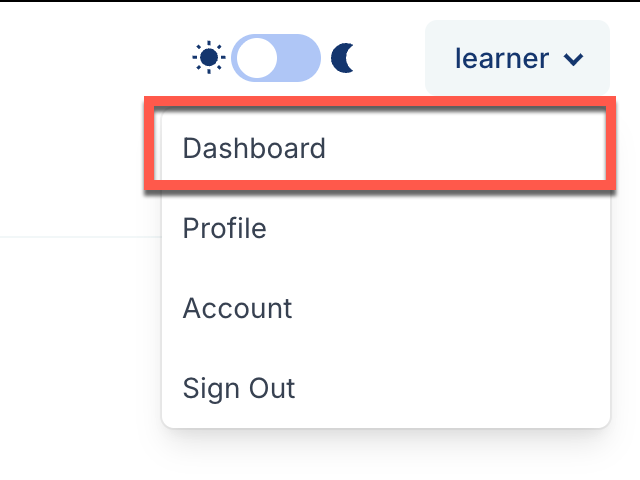
You can find information about your courses and change course-specific email subscription settings on your dashboard. For more information, see Updating Course-Specific Settings.
Share Your Courses on Social Media#
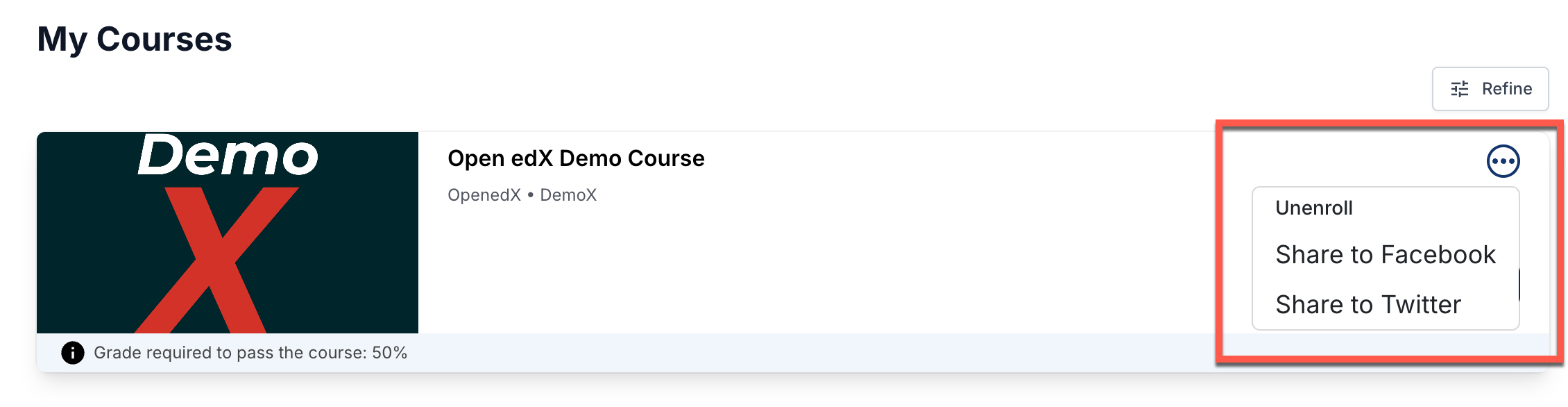
On your dashboard, you can share the courses you are enrolled in on social media sites such as Facebook and Twitter.
This feature is available only if it has been enabled by your course provider.
Sign in to the social media site on which you want to share your course enrollment.
From your dashboard, find the course that you want to share.
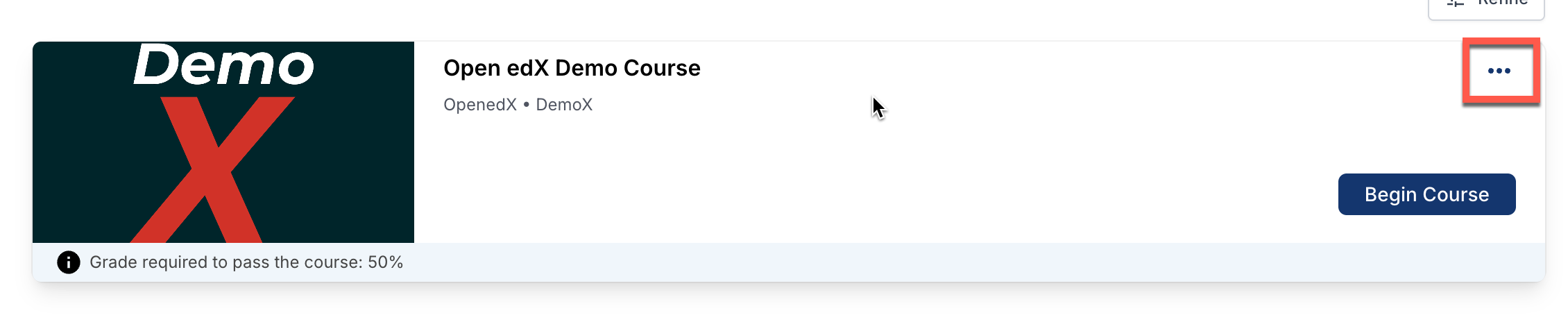
Click or tap the menu button (triple dot icon) at the top of the course card. In the dropdown select the “Share to (social media site)” item for the social media site of your choice (e.g. Twitter, Facebook). This will open a pop up which will allow you to share info about the course to social media.
Optionally, modify the text of the social media message.
Select the appropriate button to publish your message on the social media site.
Update Your Profile Image#
To update your profile image, follow these steps.
At the top of any page, select the dropdown menu icon next to your username, then select the Profile tab.
(optional) Add an image that you want to associate with your username. Your image must be a .gif, .jpg, or .png file. The image must be between 100 bytes and 1 MB in size. If you do not add an image, the placeholder image appears as your profile image.
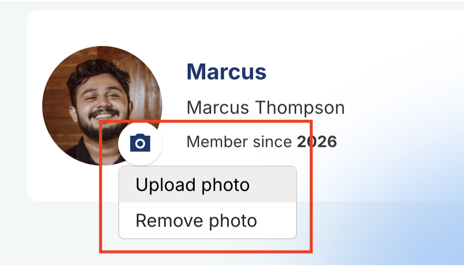
Click on the camera icon by your profile image, and click Upload photo.
In the file navigation window, select the image file that you want to use as your profile image, and then click Open.
To change or remove your profile image, repeat the steps and choose Upload photo or Remove photo. When you remove your profile image, the placeholder image appears as your profile image.
The site saves your changes automatically.
Update Your Profile Details#
Your profile can include the following details in addition to your username and profile image.
Your full name
Your username
Your profile image
The date that you joined the site
Your education level
Your language
Your country
A short bio
Links to any course certificates that you have earned
Links to your social media accounts
To add or update your profile, follow these steps.
At the top of any page, select the dropdown menu icon next to your username, then select the Profile tab.
On your profile page, click the edit (pencil) icon next to the information that you want to change.
Modify the information by entering text or selecting an option from the list.
The site saves your changes automatically.
Add Links to Your Personal Social Media Accounts#
To add links to your social media accounts to your profile, follow these steps.
At the top of any page, select the dropdown menu icon next to your username, then select the Profile tab.
On your profile page, click the Add button or edit button in the Social Media section you want to edit.
Add your full social media URL or your username in the text field.
For example, if your Facebook username is
edx, you can enter eitheredxorhttps://www.facebook.com/edx.For LinkedIn, note that your username might include numbers. For example, if the URL of your LinkedIn profile page is
https://www.linkedin.com/in
/firstname-lastname-123456/
, your LinkedIn username isfirstname- lastname-123456.
The site saves your changes when you click outside the text field.
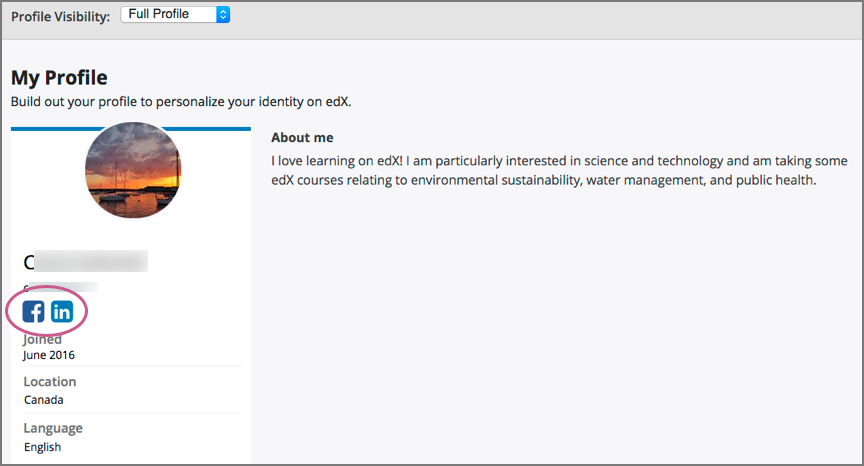
When you view your profile, icons for the social media icons that you added links for appear below your username. Other learners or course team members can click those icons to visit your social media account page.
Toggle Profile Information Visibility#
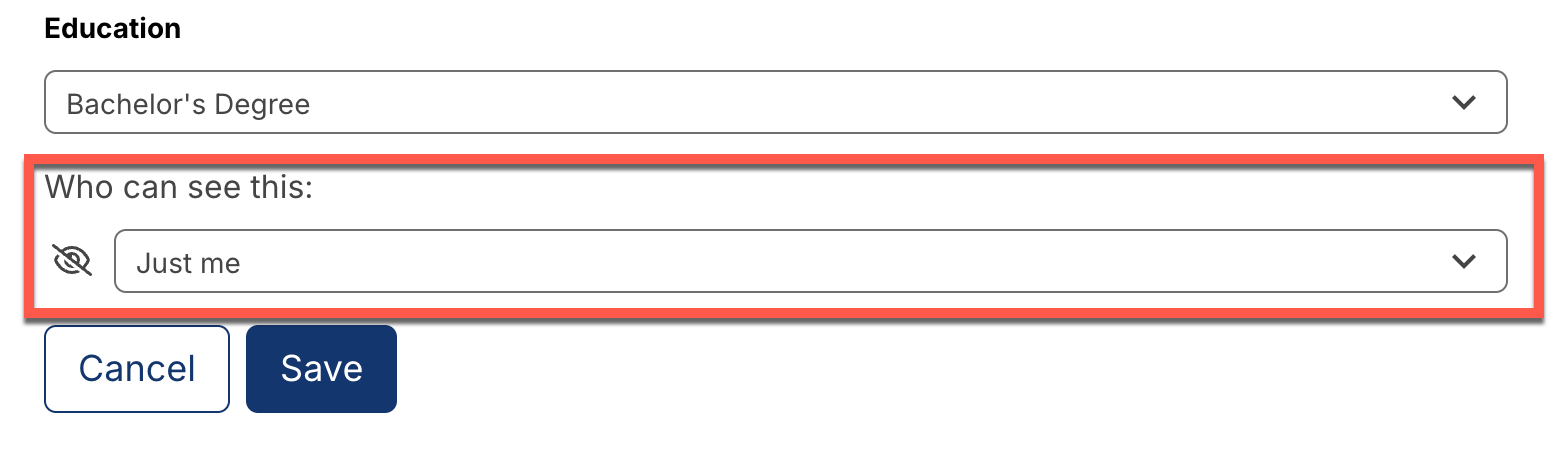
For any profile field, you can toggle the visibility of the profile information to other learners.
Options are:
Just Me: Only you can see this information.
Everyone on [Platform]: Anyone who is a registered learner on the platform can see this information.
To toggle the visibility of the profile information, follow these steps:
Within the dashboard page, choose a field to edit.
Modify the Who can see this field by selecting the appropriate option.
Click the Save button.
View Another Learner’s Profile#
You can view other learners’ profiles through their posts, responses, or comments in course discussions.
On the Discussion page, select the username of any learner in a post, a response, or a comment.
A page that displays the discussion activity only for the selected learner opens.
On the learner’s Discussion page, select their linked username.
The learner’s account profile page opens.
Updating Course-Specific Settings#
From the dashboard, you can modify the course-specific settings that are available to you by clicking the three dot icon and selecting the option you want to change.
Change a Course Email Preference#
To subscribe or unsubscribe to emails from a course, follow these steps.
On your dashboard, click the three dot icon and select the Email Settings option.
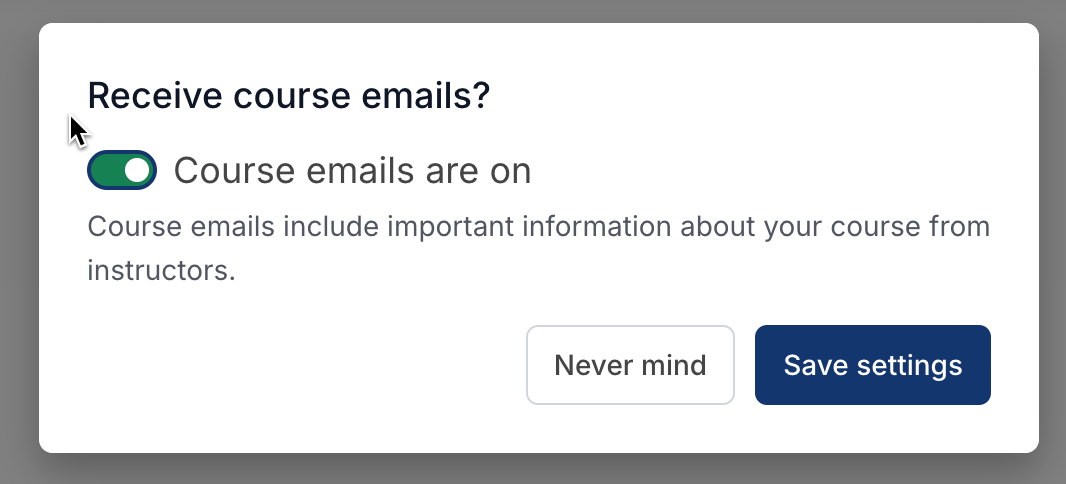
Toggle the Course emails are on slider, and then select Save Settings.
Note
If you turn off the slider, you will not receive any of the email messages that course teams send to communicate with enrolled learners in the course.
Maintenance chart
Review Date |
Working Group Reviewer |
Release |
Test situation |
2026-02-08 |
John Swope(curricu.me) |
Ulmo |
Pass |