
Add or Update Your Profile Image#
To update your profile image, follow these steps.
At the top of any page, select the dropdown menu icon next to your username, then select the Profile tab.
(optional) Add an image that you want to associate with your username. Your image must be a .gif, .jpg, or .png file. The image must be between 100 bytes and 1 MB in size. If you do not add an image, the placeholder image appears as your profile image.
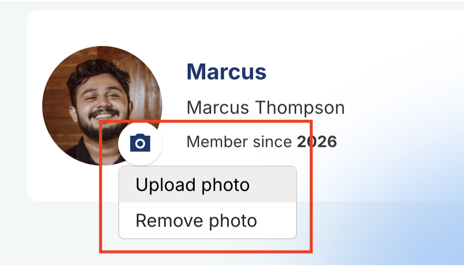
Click on the camera icon by your profile image, and click Upload photo.
In the file navigation window, select the image file that you want to use as your profile image, and then click Open.
To change or remove your profile image, repeat the steps and choose Upload photo or Remove photo. When you remove your profile image, the placeholder image appears as your profile image.
The site saves your changes automatically.
See also
what_is_profile_page (concept) Add or Update a Full Profile (how-to) Add Links to Your Personal Social Media Accounts (how-to) View Another Learner’s Profile (how-to) Toggle Profile Information Visibility (how-to)
Maintenance chart
Review Date |
Working Group Reviewer |
Release |
Test situation |
2026-02-08 |
John Swope(curricu.me) |
Ulmo |
Pass |