
Add Links to Your Personal Social Media Accounts#
To add links to your social media accounts to your profile, follow these steps.
At the top of any page, select the dropdown menu icon next to your username, then select the Profile tab.
On your profile page, click the Add button or edit button in the Social Media section you want to edit.
Add your full social media URL or your username in the text field.
For example, if your Facebook username is
edx, you can enter eitheredxorhttps://www.facebook.com/edx.For LinkedIn, note that your username might include numbers. For example, if the URL of your LinkedIn profile page is
https://www.linkedin.com/in
/firstname-lastname-123456/
, your LinkedIn username isfirstname- lastname-123456.
The site saves your changes when you click outside the text field.
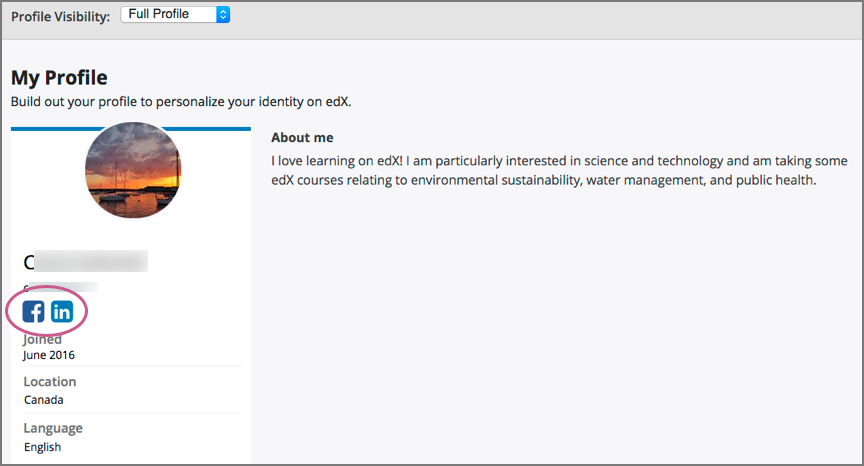
When you view your profile, icons for the social media icons that you added links for appear below your username. Other learners or course team members can click those icons to visit your social media account page.
See also
what_is_profile_page (concept) Add or Update a Full Profile (how-to) Add or Update Your Profile Image (how-to) View Another Learner’s Profile (how-to) Toggle Profile Information Visibility (how-to) Update Course-Specific Settings (how-to) Share Your Courses on Social Media (how-to)
Maintenance chart
Review Date |
Working Group Reviewer |
Release |
Test situation |
2026-02-08 |
John Swope(curricu.me) |
Ulmo |
Pass |